NVIDIA® Nsight™ Development Platform, Visual Studio Edition 2.2 User Guide
Send Feedback
Just as it does with Direct3D 10 and Direct3D 11 applications, the NVIDIA Nsight Frame Debugger allows you inspect render targets and textures, navigate through draw events, inspect pipeline states, monitor GPU and driver signals in real-time, and display performance markers for profiling.
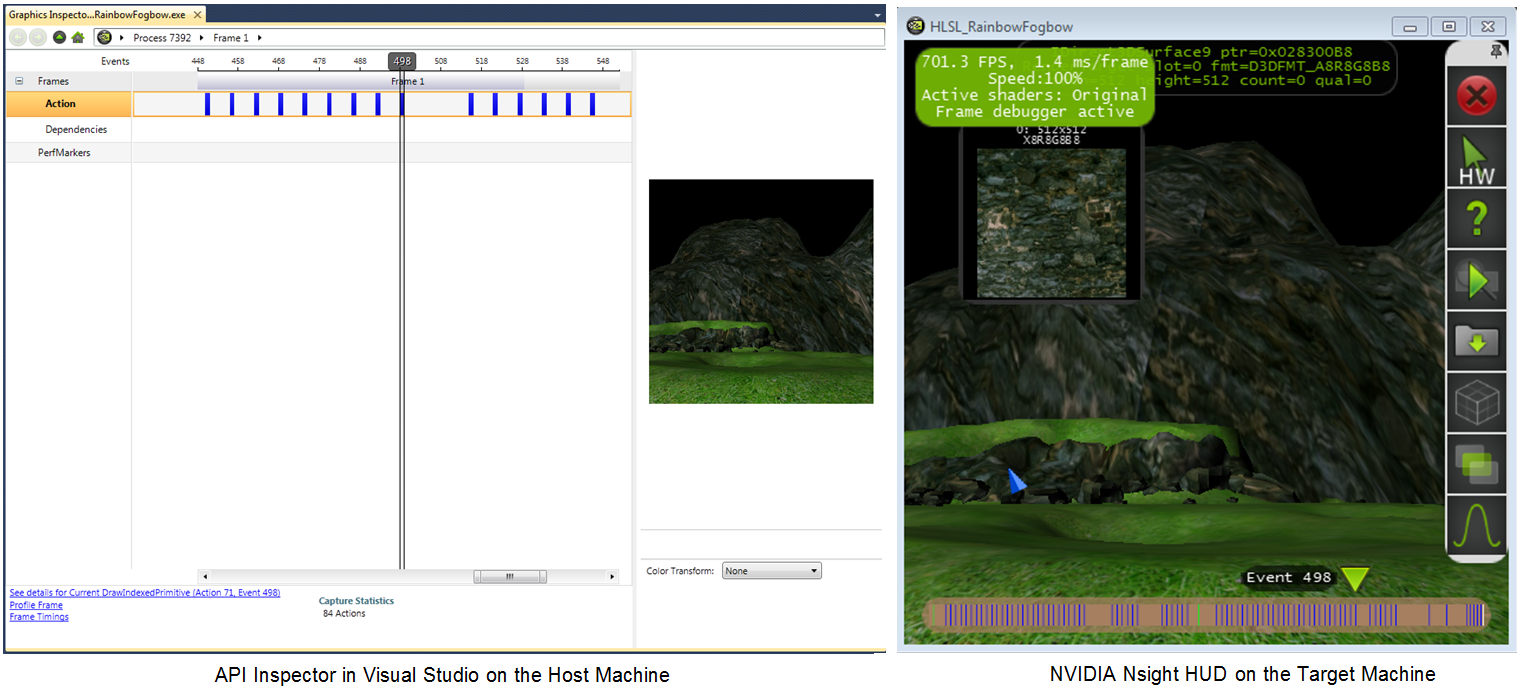
The Frame Debugger includes a performance dashboard that shows as a heads-up-display (HUD) on the application being debugged. (If you used NVIDIA's PerfHUD software, this display will be familiar to you.)
To launch the Frame Debugger:
The Frame Scrubber indicates the current draw event. There is a frame scrubber in the Frame Debugger screen in Visual Studio, as well as a frame scrubber on the HUD. The frame scrubber controls stay in synch with each other, meaning that when you move the controls on one, it affects the other. For example, if you move the frame scrubber on the HUD to highlight a new draw event, the scrubber on the Frame Debugger moves in synch to do likewise.
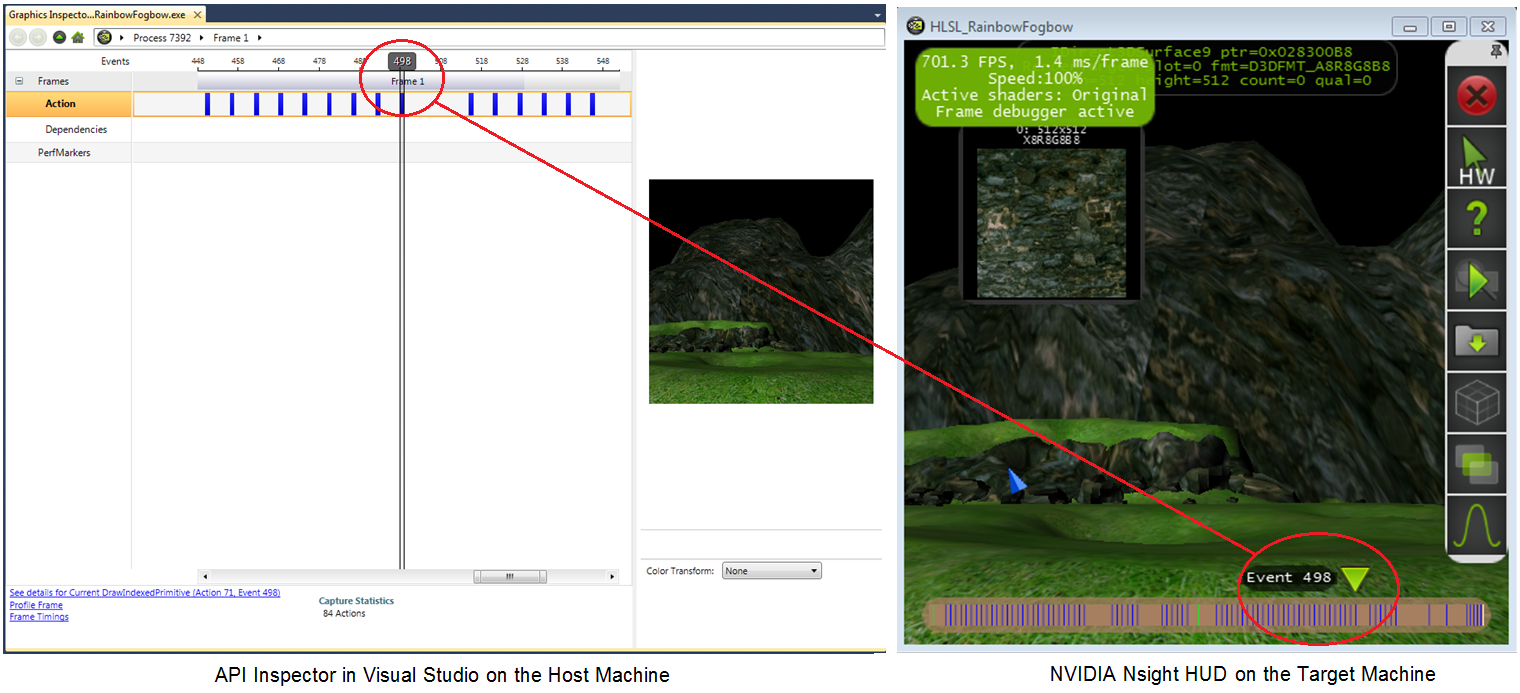
For more details on how to use the Frame Scrubber, see API Inspector Controls (Direct3D 10, Direct3D 11).
| NVIDIA® Nsight™ Development Platform, Visual Studio Edition User Guide Rev. 2.2.120522 ©2009-2012. NVIDIA Corporation. All Rights Reserved. | |